Disclosure: This post may contain affiliate links. If you click on a link and make a purchase, I may earn a small commission — at no extra cost to you. I only recommend tools and resources I genuinely find useful.
Besides affiliate reviews of AI tools, I also run another project — @lost.in.centuries, where I tell historical stories from Bulgaria and the world. My usual process is long: research, writing a script, then a carousel or Reel. But recently I decided to test something different — to see if I could turn one of these research pieces into a full presentation, using only Gamma AI. The result surprised me — it took me literally 10 minutes.
Here is exactly what I did, step by step.
The Topic: The Founding of Bulgaria in 681 AD
I chose a topic I know well and had already researched for @lost.in.centuries — the creation of the Bulgarian state by Khan Asparuh in 681 AD. It was an ideal topic to test, because I wanted to see whether the AI would present the historical facts seriously rather than superficially.
Step 1: From Notes to a Ready Prompt
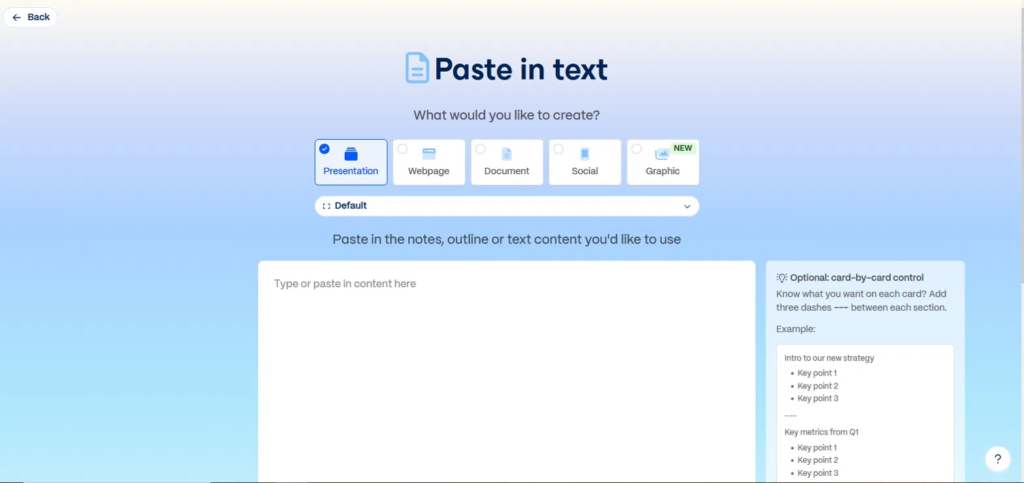
Instead of writing new text from scratch, I opened Gamma and chose the “Paste in text” option — perfect if you already have notes or an outline ready (in my case, the old notes from my Reel script).
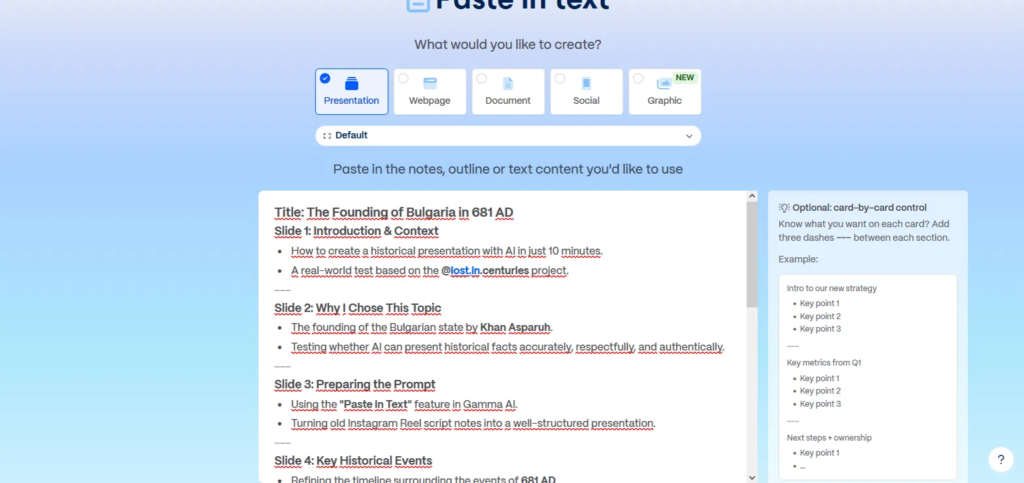
I refined my notes into a few sentences: the key events around 681 AD, Khan Asparuh’s role, the Battle of Ongal, and Bulgaria’s recognition by Byzantium. I chose the Presentation format, set the language, and the number of slides to 8 — enough to cover the topic without diluting it.
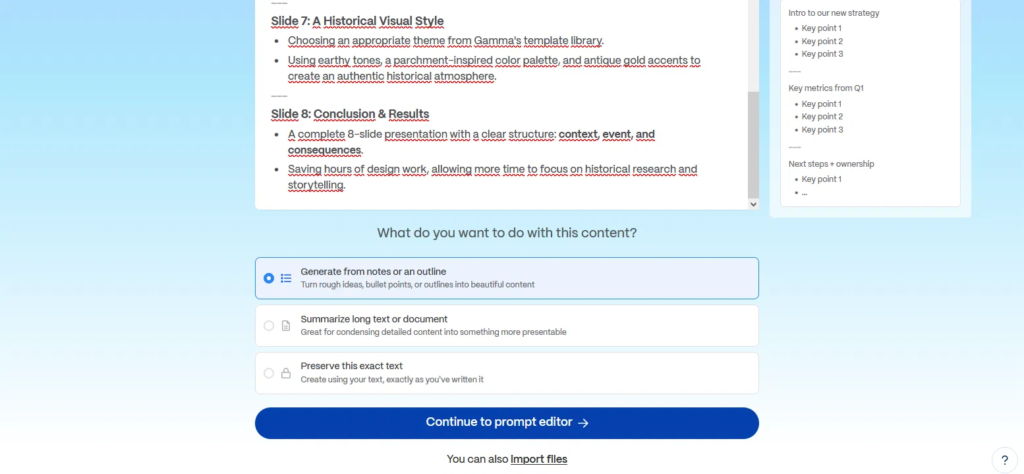
Once I entered the whole outline, Gamma asked me exactly what to do with the text — generate new content from the notes, summarize a long text, or keep exactly what I had written, word for word. I chose “Generate from notes or an outline,” letting the AI shape the sentences into complete passages while I kept full control over the structure of each slide.
Step 2: Text Settings — Concise, Not Extensive
This is where most people make a mistake. If you leave the setting on Detailed or Extensive, the AI writes too much text per slide and the presentation starts looking like a textbook instead of a visual story. I chose Concise — just enough facts to stay on screen while I narrate the rest out loud (the same principle I use for Instagram carousels). On the same screen, I also set the audience (“history enthusiasts and content creators”) and the tone (“clear, professional, slightly narrative”) — small details that make a big difference in the result.
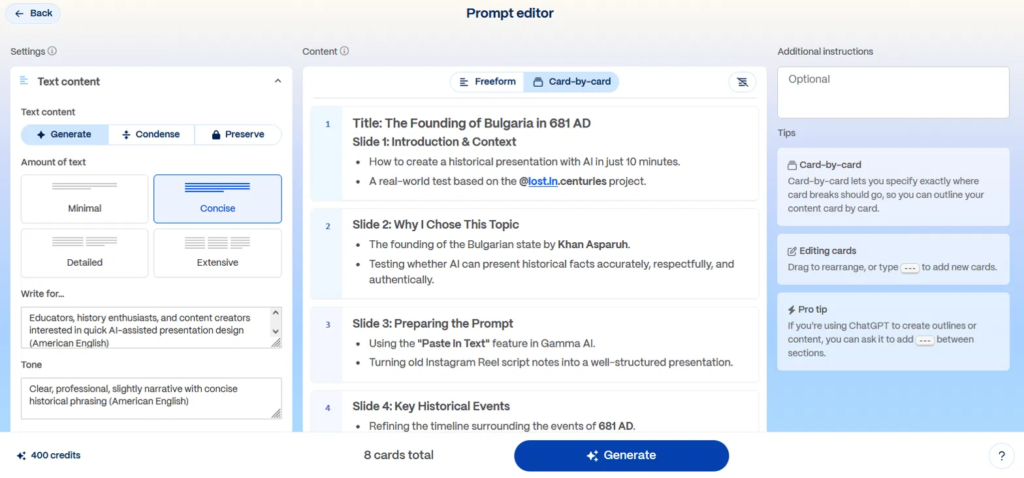
By the way — I made this entire presentation on Gamma’s free plan, which gives you 400 credits once you sign up. Generating these 8 slides took only 40 credits — meaning you can comfortably create at least 10 presentations before you even need to think about a paid plan.
Step 3: A Visual Style Fitting for a Historical Topic
For a topic like history, one rule applies: the visuals need to convey seriousness and authenticity, not look like a corporate presentation. From the themes, I chose a darker, earthy palette, close to parchment and old gold — a feel that matches the historical tone, instead of bright, modern colors.
The Result
In under 10 minutes, I had a finished presentation with 8 slides — with a clear structure (context → event → consequences), readable text, and visuals that did not look generic. Even the automatically generated illustrations (fortress walls, a sunset, a knight in armor) added to the atmosphere, without me having to search for images manually.
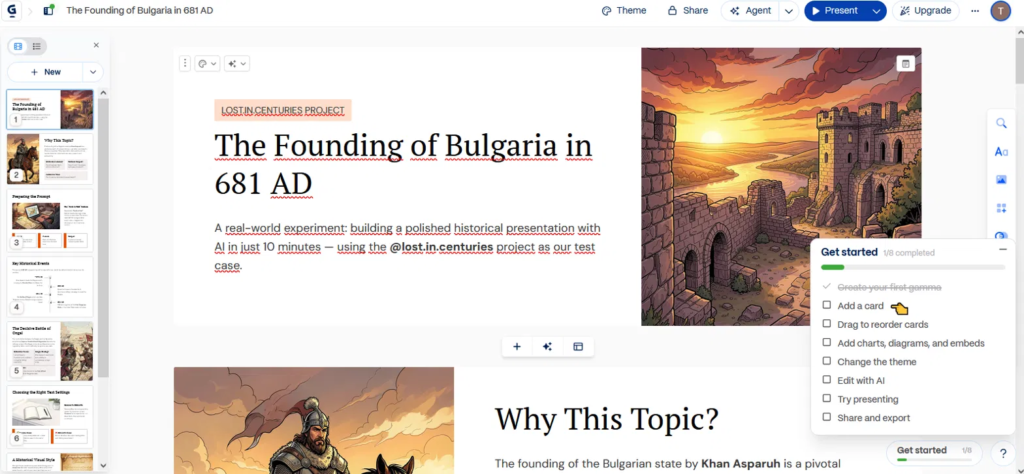
It does not replace the depth of real research, but it is a great foundation that I can later expand — for example, using it directly as visual material behind an AI avatar narrator, instead of manually cutting individual carousel cards.
Who This Is Useful For
If you create content about history, culture, or education — whether for Instagram, YouTube, or classroom presentations — Gamma AI saves you exactly that slow, mechanical part of the process (formatting slides), so you have more time for the research and storytelling that actually matter.
If you want the complete rundown of Gamma AI features, check out my full Gamma AI Review, or follow the step-by-step Gamma AI Guide to create your own first presentation. And if you enjoy history content like this one, come find me on Instagram at @lost.in.centuries.
If you want to try it yourself, sign-up is free: Try Gamma AI.