Disclosure: This post may contain affiliate links. If you click on a link and make a purchase, I may earn a small commission — at no extra cost to you. I only recommend tools and resources I genuinely find useful.
If you’re making video content right now — for TikTok, Instagram, YouTube, or anywhere else — you already know the truth: the actual filming is rarely the hard part. The hard part is everything around it. Scripting, editing, voiceovers, finding footage, captions, transitions.
Over the past few months I’ve rebuilt my entire content workflow around AI tools, and it’s completely changed how much I can produce in a single afternoon. I’m not talking about replacing creativity — I’m talking about removing the boring, repetitive parts so there’s more time left for the parts that actually matter: the story, the hook, the idea.
Here are the five tools I use every single week, what each one actually does well, and where it falls short — because no tool is perfect, and I’d rather tell you the truth than sell you a fantasy.
1. HeyGen — For AI Avatars and Faceless Video
If you’ve ever wanted to create video content without showing your face — whether that’s for privacy reasons, comfort, or just because you want a consistent on-screen presenter — HeyGen is the tool that made it possible for me.
I started on the free plan, which gives you three AI-generated avatars and three talking videos. I’ll be honest: I went in with low expectations, and came out genuinely impressed. The lip sync is realistic, the avatars speak naturally, and the level of customisation surprised me — I was able to change the hairstyle and overall look of each avatar, and even add a dog beside one of them, which for my content is exactly the kind of detail that makes a video feel personal rather than generic.
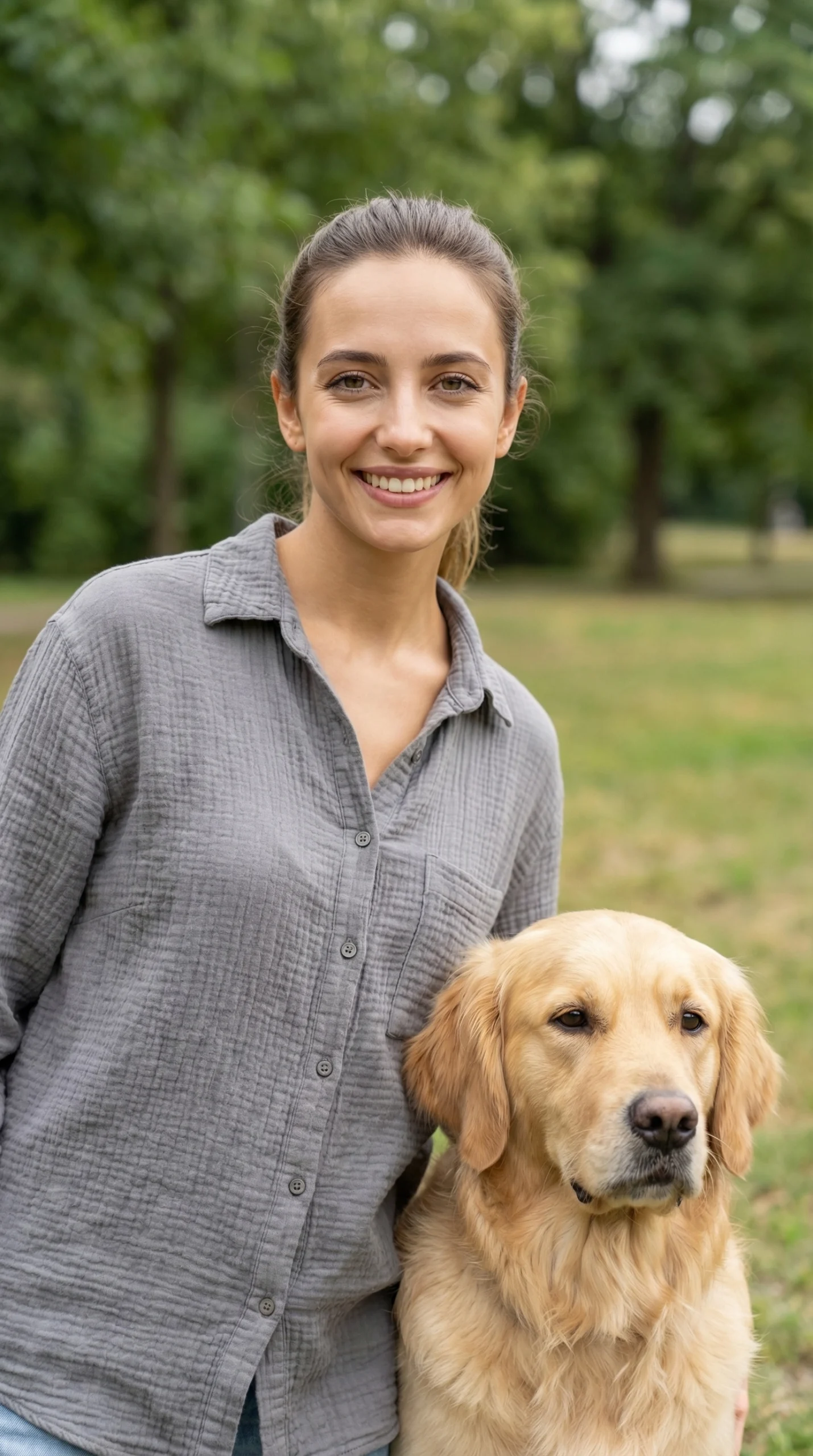
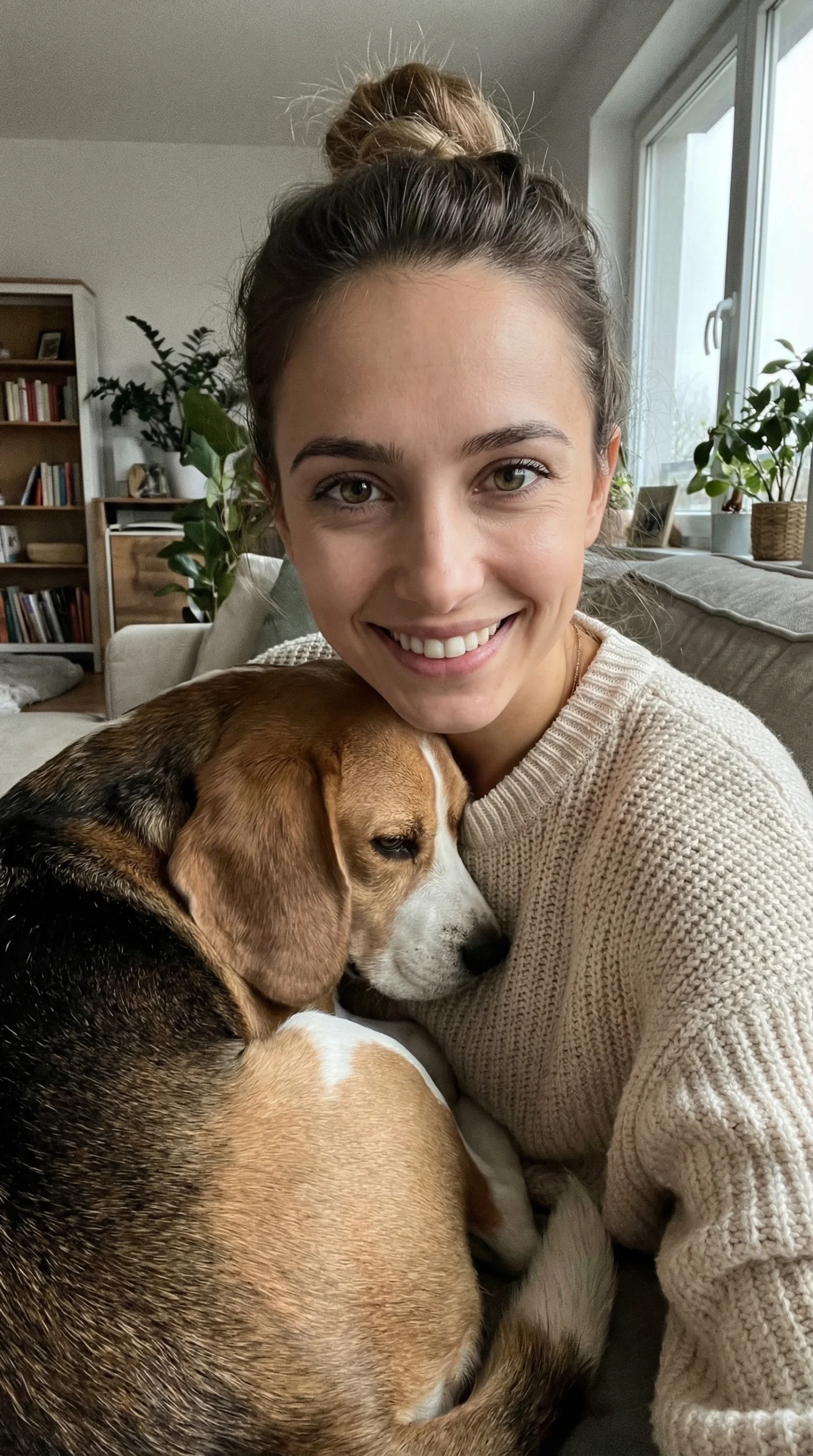
What it’s great for: narration-style content, educational videos, faceless brand accounts, multilingual content (it supports dozens of languages with natural-sounding delivery).
Where it struggles: very fast, energetic talking-head content. The avatar movement is convincing but still reads as slightly produced rather than spontaneous. And if you want to scale beyond three videos, you’ll need a paid plan — but even the lowest tier unlocks a lot. Based on what the free version already does, I think the paid plan is well worth exploring.
2. ElevenLabs — For Voiceovers That Don’t Sound Robotic
Voiceover used to be one of the biggest bottlenecks in video production. You either needed to record it yourself (and re-record it when you stumbled over a word), or pay for professional voice talent and wait days for delivery.
I use ElevenLabs specifically to clone my own voice — and then feed that voice directly into HeyGen so my avatar sounds like me. The first time I heard the result, I genuinely had to listen twice to convince myself it wasn’t a real recording. The accuracy is that good. One to one, as close as it gets.
What it’s great for: voice cloning for consistent brand audio, narration, dubbing content into other languages while preserving a natural tone, quick iteration when you need to fix a single line without re-recording everything.
Where it struggles: very long-form content can occasionally have small inconsistencies in pacing between sections, so I always do a full listen-through before publishing.
3. Kling AI — For Cinematic Video Generation
This is the newest addition to my toolkit, and the one I’m most excited about. Kling AI generates video from text prompts or still images, and the camera movement, lighting, and motion consistency are genuinely cinematic — not the jittery, surreal output you might associate with earlier AI video tools.
I started on the free plan, but the credits run out quickly — there simply aren’t enough to explore the tool properly. I moved to the lowest paid plan, and that’s when things got interesting. Since then I’ve generated a significant number of images and video clips, and the quality has consistently held up. You can see some examples below — these are actual outputs from my account.
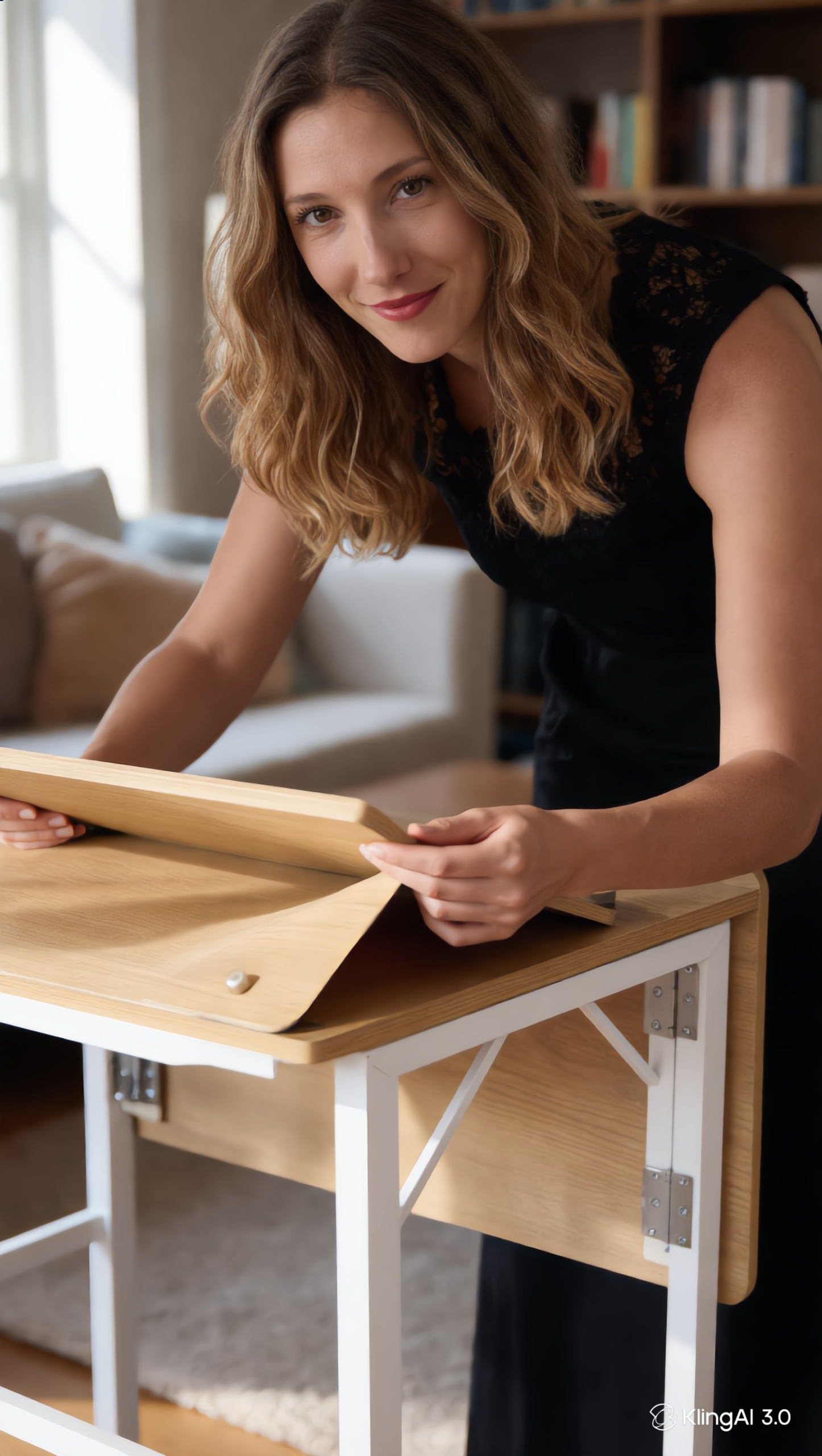

What it’s great for: B-roll, mood-setting shots, transitions, visual storytelling — and Motion Control, which lets you apply a movement reference to a still image (the same technique behind those viral dancing pet videos).
Where it struggles: the free credits are genuinely too limited to get a real feel for what the tool can do. Budget for the lowest paid plan if you want to explore it seriously.
Want to try Kling AI? Use my referral link to get bonus credits when you sign up: Try Kling AI →
4. CapCut — For Fast, Mobile-First Editing
I’ll be straightforward here: CapCut is not my strongest area, and I know plenty of creators who absolutely love it. It’s free, it’s fast, the auto-captions work well, and it handles vertical video formatting without any friction. For many people, it’s the obvious choice.
For me personally, I found the interface a little harder to navigate than I expected — and I ended up discovering a separate tool that handles captions more easily for my particular workflow. That’s not a knock against CapCut; it’s just an honest reflection of what happens when you actually test tools rather than just recommend them. If you’re already comfortable with it, stick with it. If you’re starting from scratch, it’s absolutely worth trying — most people find the learning curve short.
What it’s great for: quick turnaround editing, vertical video formatting, auto-captioning (essential — most people watch with sound off), background removal.
Where it struggles: for longer-form or more complex multi-layer edits, desktop tools still give you more control. CapCut is built for speed, not depth.
5. Canva — For Thumbnails, Carousels, and On-Brand Visuals
Video doesn’t exist in a vacuum — you need thumbnails, carousel posts to support it, branded templates for consistency, and quick graphics for hooks and text overlays. Canva is where all of that happens for me.
I’ve been using it for Instagram Reels covers, carousels, and Pinterest pins well before I started building the Tetivoa brand — so by the time I started creating content here, I already had a solid feel for how it works. I’m currently putting together a Brand Kit specifically for this site (colours, fonts, logo), so that every piece of content I publish has a consistent visual identity from day one.
What it’s great for: maintaining a consistent visual identity across platforms, quickly resizing the same design for Instagram, Pinterest, and YouTube without starting from scratch each time.
Where it struggles: highly custom or intricate design work still benefits from more advanced design software — Canva is about speed and consistency, not precision design.
How These Tools Work Together
None of these tools do everything on their own — and that’s actually the point. My typical workflow looks like this: I write the script first, then generate the voiceover in ElevenLabs using my cloned voice, feed that audio into HeyGen to create a talking avatar, generate any additional visual footage in Kling AI, assemble and caption everything in CapCut (or my caption tool of choice), and build the supporting graphics — Pinterest pins, thumbnails, carousels — in Canva.
What used to take an entire day now takes a few focused hours. And the quality, if anything, has gone up — because the time I save on production goes straight back into the script and the idea.
Where to Start
If you’re just beginning to explore AI video tools, my advice is to pick one bottleneck first. If voiceover is slowing you down, start with ElevenLabs. If you need visual content without a camera, start with Kling AI or HeyGen. Solve one problem before trying to overhaul your entire process at once.
AI video tools are moving fast, and what’s true today may shift in six months. None of these tools are flawless. But for the actual goal — producing consistent, quality content without burning out — these five have made the biggest difference in my own workflow.