Disclosure: This post may contain affiliate links. If you click on a link and make a purchase, I may earn a small commission — at no extra cost to you. I only recommend tools and resources I genuinely find useful.
If you want to quickly turn text into a realistic AI voice, ElevenLabs is one of the easiest ways to do it — no studio, no microphone, and no voice-acting experience required. Here’s the whole path, step by step.
👉 Create a free ElevenLabs account
Personal note: I was able to clone my own voice fairly quickly and use it for an avatar in my own videos — the likeness is very good, and generation is fast. I also used Dubbing to have my avatar speak another language in my own cloned voice — perfect for faceless content in more than one language.
The 10 Steps to a Finished AI Voice-Over
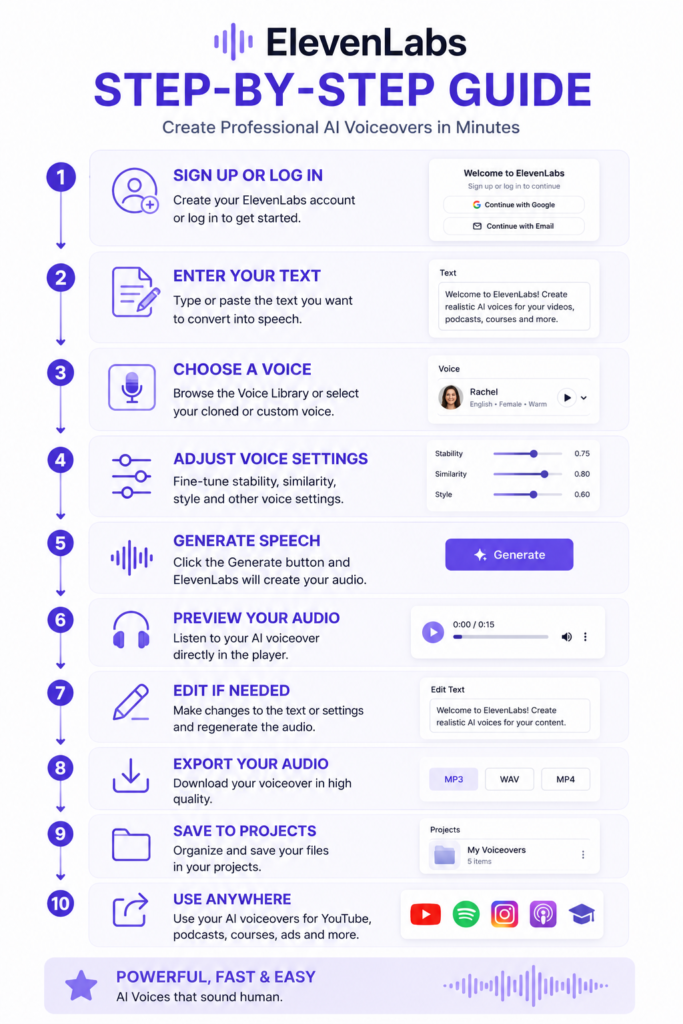
The whole process — from sign-up to finished audio — takes just a few minutes.
- Sign up or log in. Create an account with Google, GitHub, or an email address. Confirmation is automatic, and you get instant access to the Dashboard.
- Enter your text. Select Text to Speech from the left-hand menu and type or paste the text you want read aloud — anything from a single sentence to a full script.
- Choose a voice. Browse the Voice Library or pick your own cloned voice. Every voice has a short demo so you can hear how it sounds before generating.
- Adjust the settings.
- Stability — higher = more even delivery; lower = more emotion
- Style — adds expressiveness for ads and storytelling
- Similarity — how closely the voice sticks to the original model (important for cloning)
- Generate. Click Generate. Within seconds you’ll have finished audio with natural intonation and pauses.
- Preview and edit. Listen to the result right in the player. If needed, tweak the text or settings and generate again.
- Export. Download the file as MP3, WAV, or MP4 — whatever the project needs.
- Save to projects. Organize your generated files into folders in the Projects section so you can find them easily later.
- Use it anywhere. The finished voice-over can go into a YouTube video, a podcast episode, an Instagram Reel, an online course, or an ad.
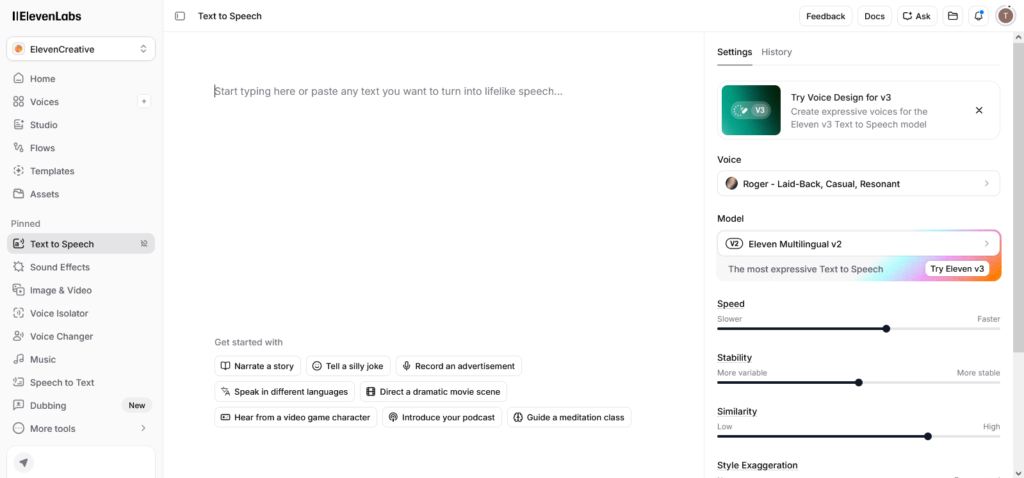
The text field, voice selector, and setting sliders — all on one screen.
Tips for a More Natural Result
- Write short, clear sentences.
- Use proper punctuation — read each section on its own before moving to the next.
- For long projects, work in parts instead of generating everything at once.
- Turn on Speaker Boost when you need maximum clarity (at the cost of slightly longer processing).
Beyond Text-to-Speech: What Else Is in the Dashboard
After your first project, it’s worth exploring the rest of the tools in the left-hand menu — the platform is now much more than a voice generator:
- Sound Effects — sound effects and ambient sounds from a text description.
- Image & Video — generate images, video, and lip-sync, with ready-made Avatars for consistent characters.
- Dubbing — automatic translation and voice-over for video in dozens of languages, now with a newer V2 model.
- Templates — ready-made templates for product shots, mockups, and stylized portraits.
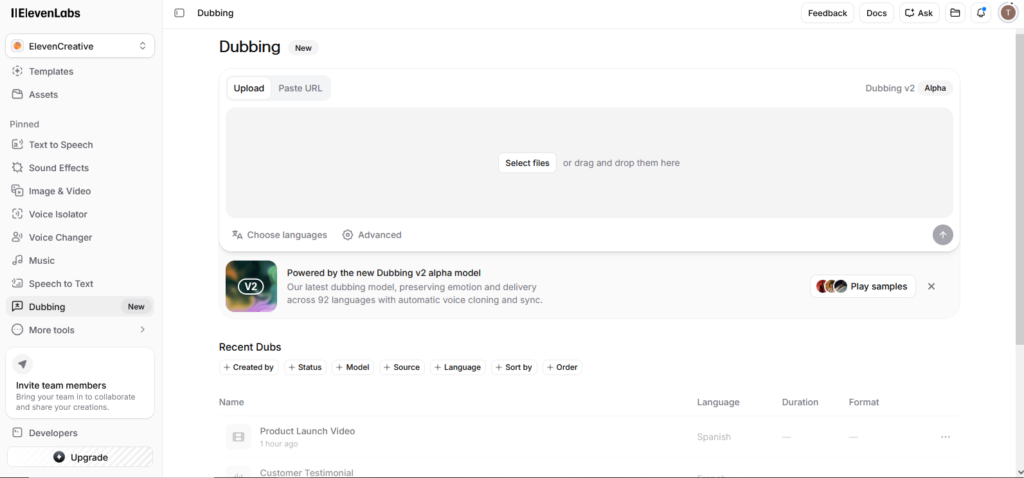
The Dubbing section in ElevenLabs.
Conclusion
With these 10 steps, you can go from a blank text field to a professional-sounding AI voice in minutes. If you want a deeper look at pricing, how it compares to competitors, and all of the platform’s professional features, check out the full ElevenLabs Review 2026 on the blog.