Disclosure: This post may contain affiliate links. If you click on a link and make a purchase, I may earn a small commission — at no extra cost to you. I only recommend tools and resources I genuinely find useful.
If you want to turn an idea into a finished presentation without touching a single text box, Gamma AI is one of the fastest ways to do it. Here’s the whole path, step by step, with screenshots from an actual run through the platform.
Try it: Try Gamma AI for free here
The 7 Steps to Your First Gamma AI Project
The whole process, from creating an account to a finished, shareable project, takes about ten minutes.
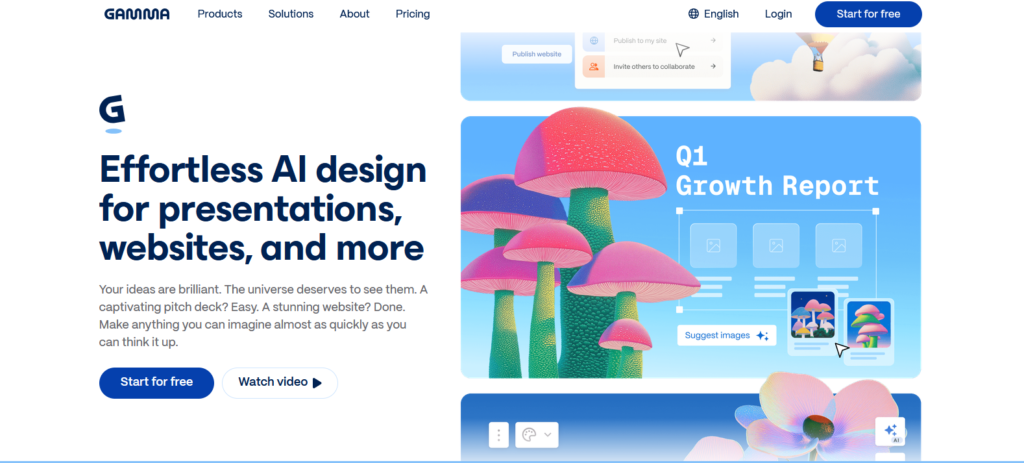
- Create a free account. Go to gamma.app and click Start for free, top right or in the middle of the homepage. Sign up with Google or an email address, then follow the short onboarding (Gamma asks what you’ll use it for: work, school, or personal projects).
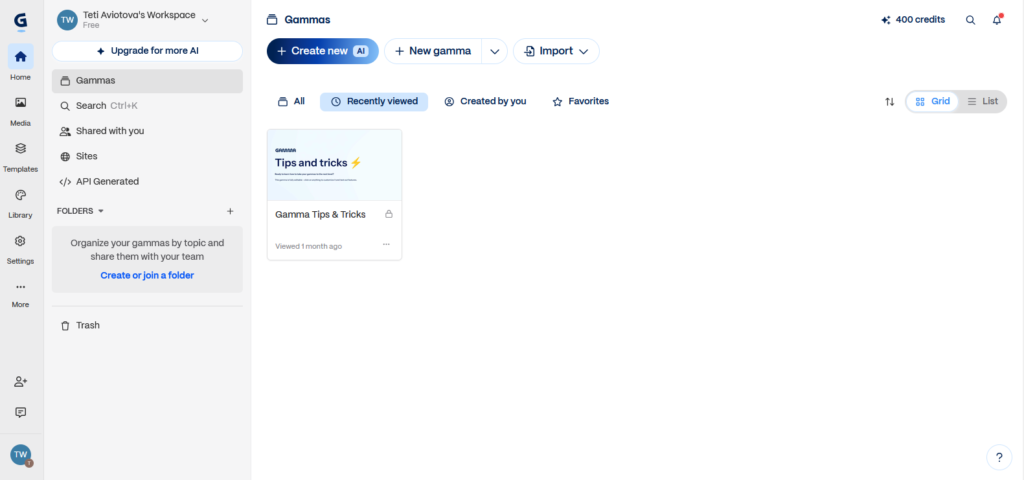
- Land on your dashboard. After signing up you land on your Gammas dashboard: your workspace name top left, quick actions for Create new, New gamma, and Import, and tabs for All, Recently viewed, Created by you, and Favorites.
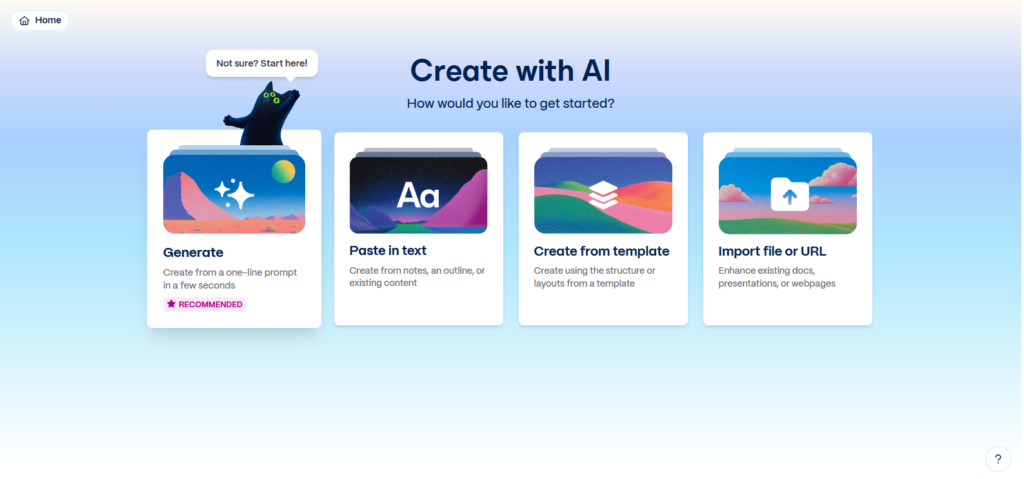
- Choose how to start. Click Create new and Gamma asks: “How would you like to get started?” You get four options: Generate (create from a one-line prompt in a few seconds, marked Recommended), Paste in text (turn notes or existing content into slides), Create from template, and Import file or URL (enhance an existing doc, deck, or webpage). For a first project, go with Generate.
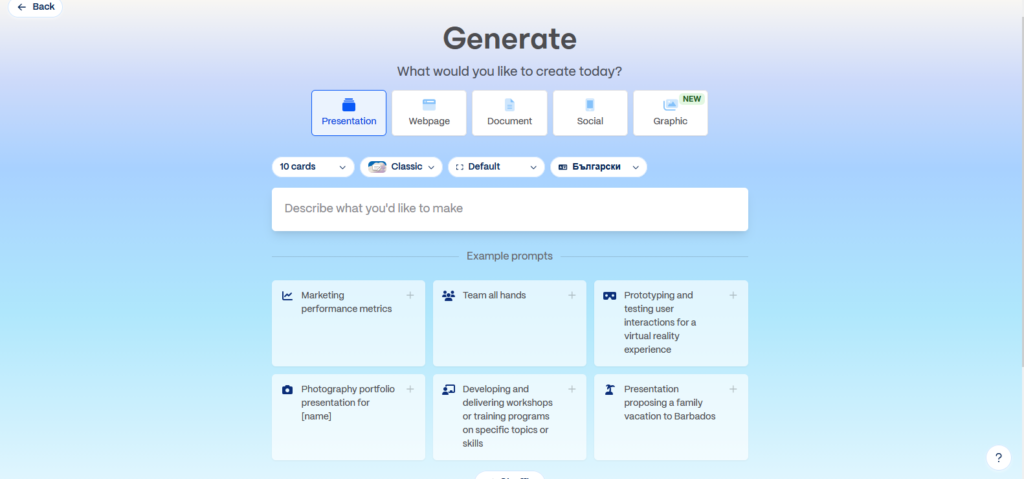
- Pick a format and write your prompt. Choose what you’re making – Presentation, Webpage, Document, Social, or Graphic – then set the quick options above the prompt box: how many cards (10 cards is the default), the generation style (Classic), a layout preset (Default), and the output language. Gamma supports dozens of languages, Bulgarian included. Type your topic into “Describe what you’d like to make,” or grab one of the example prompts if you’re starting from zero.
- Review the AI outline. Before it builds a single slide, Gamma shows you a full outline: every card title and its bullet points, in the order they’ll appear. This is the easiest place to fix direction – add a section, delete one, or rewrite a heading, all before any design work happens.
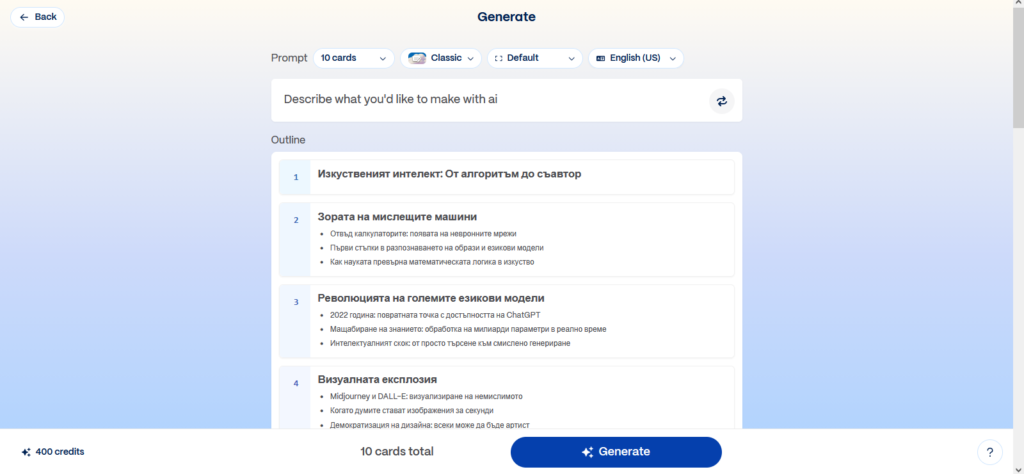
Personal note: I ran this exact flow with the language set to Bulgarian, and the outline came back coherent and well-structured, not a rough machine translation. If you’re building content for a Bulgarian audience, that alone is worth knowing.
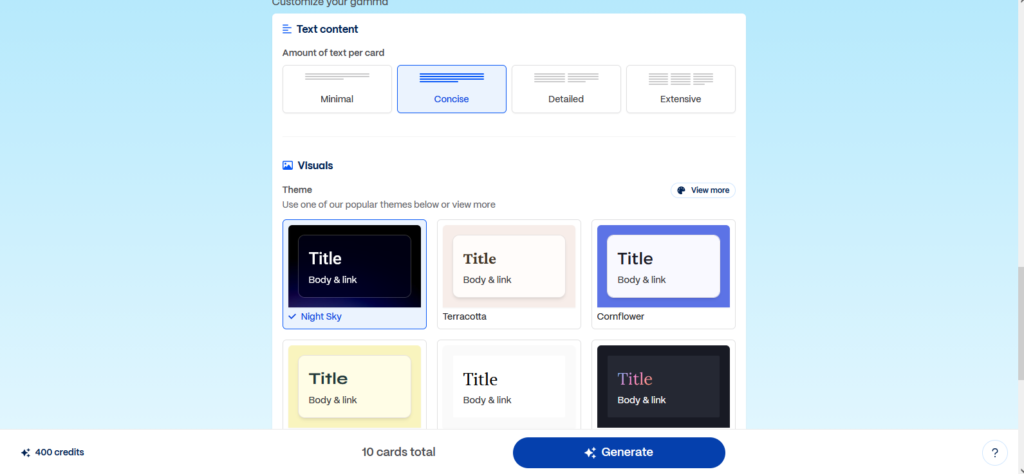
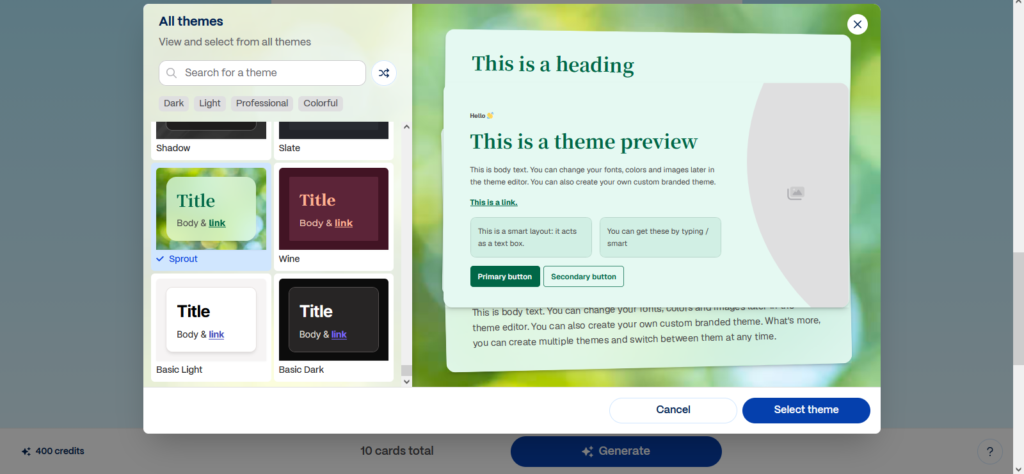
- Customize the design, then generate. Under Customize your gamma, set Amount of text per card – Minimal, Concise, Detailed, or Extensive (Concise is the default and works for most decks). Below that, pick a Theme from the popular options shown, or click View more to open the full theme library, browsable by Dark, Light, Professional, and Colorful, with a live preview panel. The bottom bar always shows your remaining AI credits and the total card count. Once you’re happy with the look, click the big Generate button.
- Share or export your project. Once generation finishes, you can keep editing inside Gamma, then publish it as a live web page, share it with a private link, invite others to collaborate in real time, or export it as a PDF or PowerPoint file (PPTX export is available from the Plus plan up).
Tips for Better Results
- If the first draft misses the tone you want, rewrite the prompt rather than editing every card by hand – it’s faster and the whole deck stays consistent.
- Concise is the safe default for business and pitch decks; switch to Detailed or Extensive for reports and documentation.
- Always check View more before settling on a theme – the six shown by default are only a fraction of the library.
- Keep an eye on your AI credit count (bottom left) before generating a large, image-heavy deck.
Beyond Your First Presentation
The same Generate flow works for Documents, Webpages, Social posts, and Graphics, not just presentations – the steps above barely change. Once you’re comfortable with the basics, it’s worth exploring Templates and Library from the left-hand menu for ready-made structures you can adapt instead of starting from a blank prompt.
Conclusion
These seven steps take you from an empty account to a finished, shareable project without touching a design tool. If you want a deeper look at pricing, how Gamma AI compares to Canva and other alternatives, and the platform’s full feature set, check out the complete Gamma AI Review 2026 on the blog.
Try it: Try Gamma AI for free here